How To: Install and Use Microsoft Authenticator
Install and Use Microsoft Authenticator
Beginning 4/13/2026 date, you must use Microsoft Authenticator to sign in to your Microsoft accounts.
Just follow the three steps below to begin using Microsoft Authenticator to sign into Microsoft accounts.
- Download Microsoft Authenticator: IOS | Android
- Add your account to Microsoft Authenticator
- Sign in Using Microsoft Authenticator
Step 1
Download Microsoft Authenticator – IOS | Android
- If you have done this already move to Step 2
Step 2
Add your account to Microsoft Authenticator
- Open Authenticator and select the plus icon + on the top menu bar.
- Tap Work or school account and select Sign in.
- Enter your work email address and click Next.
- Enter your password.
- You have successfully added your account to Microsoft Authenticator.
Step 3
Sign in using Microsoft Authenticator
- Open Outlook, Teams, or MS365 app on your desktop or mobile device
- Enter your username at the sign-in prompt and select Next.
- Select Send notification.
Note: If necessary, select Other ways to sign in then Approve a request on my Microsoft Authenticator app. - You will be prompted to Check your Authenticator app and may also be shown a number.

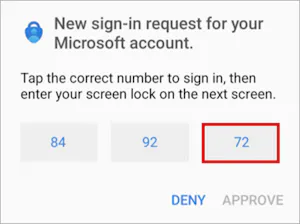
- On your mobile device, open Authenticator, or tap the New sign-in request notification.
Note: You may need to unlock Authenticator before confirming sign-in.
- Tap or enter the corresponding number, then Approve.
- You have successfully signed into a Microsoft application using Microsoft Authenticator!